Observing the Steam Deck at 4k affects its performance... technically

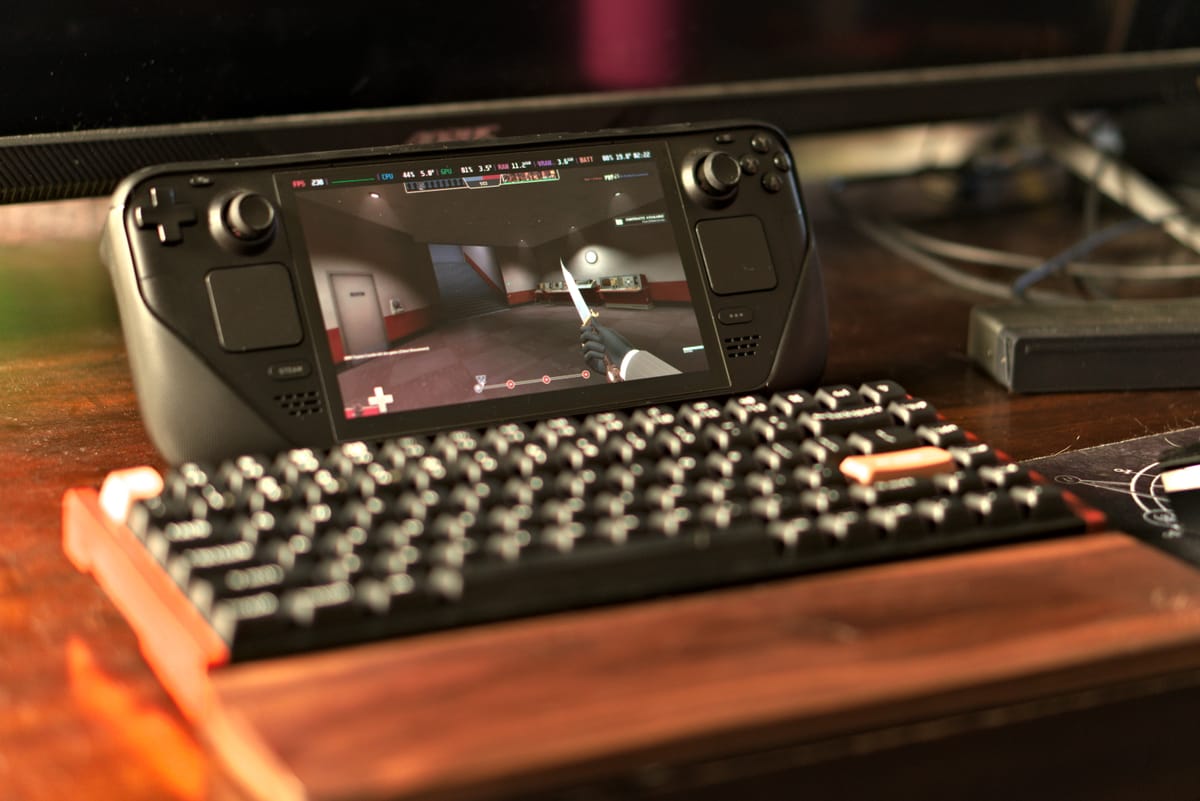
...but before we dig into that, let's cover some context. I'm a really big fan of hybrid game play. For me, that generally means alternating between playing at my desk on my 4K 43" monitor, and sitting on the couch. I'm also a tech enthusiast, so I pay close attention to things like frame rate, power draw, and etc. That's how I noticed something strange. If I played a game at 720p on my Steam Deck in handheld mode I and got 100fps but then docked to my monitor, suddenly my frame rate would be around 70fps. This is still at 720p with FSR upscaling off.
This boggled my mind. As far as I was aware, nothing had changed. I was playing at 720p on one screen getting a good frame rate, but once I played on a different screen with the same render resolution I would lose anywhere from 33-50% of my frames! This ended up coming down to a few things. First off, there seems to be something really special about 4k120 display, likely because it's so demanding on bandwidth limitations. My recommendation is to not even try 4k120 with the deck unless you're absolutely certain your dock and monitor support it. I've found that it's much easier to get 4k60 working than 4k120, e.g., I'll get a higher frame rate on 4k60 than 4k120 if I'm not careful. I got sick of this and pulled the plug on buying the overkill BenQ GR10 dock (not sponsored).

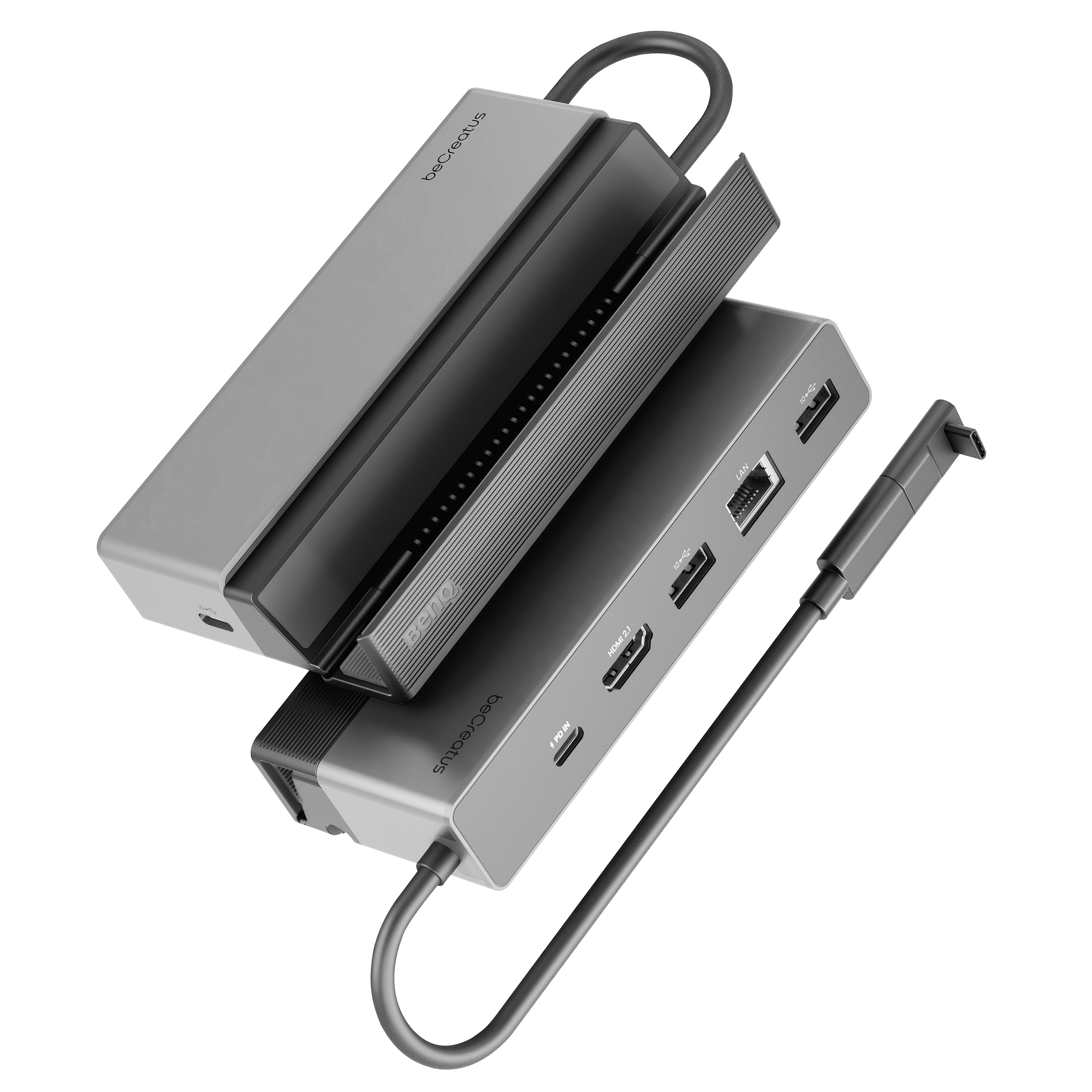
Even with the BenQ dock I still run into issues sometimes, such as for a few days after setting resolution to 4k120 all I would see is a bright grey screen. No other display modes produced this effect. Thankfully, that issue seems to have resolved itself somehow. If you're running a solid dock/monitor setup or have lowered your output resolution to at least 1440p120 and are still seeing an unexpected frame drop when docked, then continue reading
Render Pipeline
To the best I could tell, these frame drops did not appear to be tied to either CPU or GPU utilization/clock speeds. My theory then, was that this might be tied to memory bandwidth limitations, which is much harder to measure. While troubleshooting this issue, I reached out to Mario Limonciello to see if he had an opinion. Mario is a legend on the Framework forums and also happens to be an AMD Linux GPU firmware engineer. Here's what he had to say:
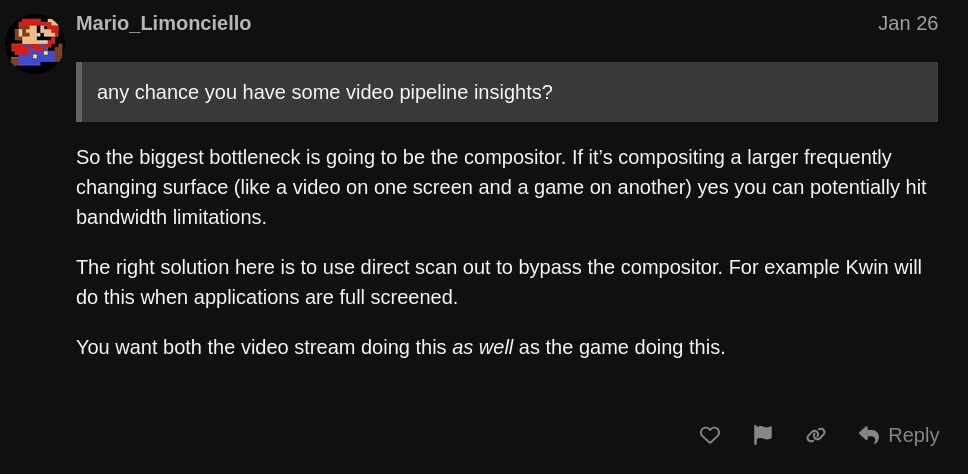
A compositor, which he cites as likely being the biggest bottleneck, is a software component that can help layer multiple images together. E.g., if multiple windows are being displayed it a compositor determines which window is on top, which parts to show, fill the unused spaces with your desktop wallpaper and etc. It might also do other things, I'm not sure, but that's what's relevant to here. Mario cites Kwin, which is the compositor used by KDE Plasma on Linux (and the Steam Deck's desktop mode), but the compositor used by the Steam Deck (in gaming mode) is called Gamescope and developed by Valve.
When an image has to be manipulated by the compositor, it may need to be copied back and forth/moved around in memory. Therefore, the larger the image the more bandwidth this movement consumes. The impact of this is likely reduced at lower resolutions. So, it seemed that there was at least some amount of credibility to my theory, but I'd never heard of "direct scan out" before. Turns out, this is a mode where an image can simply be pushed directly to the monitor as-is, no scaling or overlaying required. This would explain why it happens when an application is full-screened.
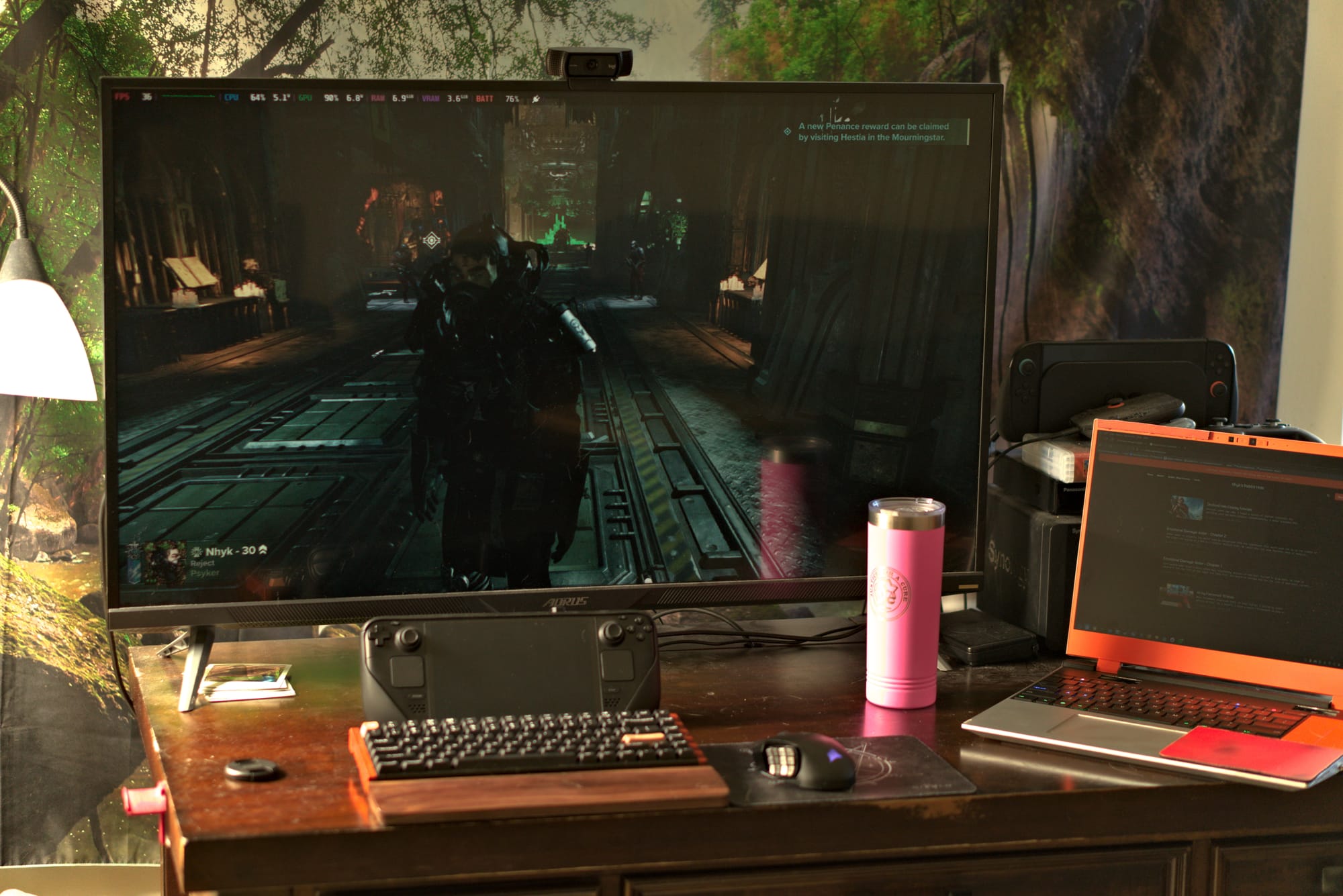
But I'm in full-screen, so there should be no compositing... right? Well, not quite. As it turns out, I noticed this issue because I was making use of the Steam Deck's frame rate overlay (a.k.a. Mangohud). Something has to merge the fps overlay with the game image prior to sending it to the monitor: and in doing so we've invited a compositor to the party.
To test this theory I launched Overwatch, which includes an in-game fps meter, and went to the training arena.
With mangohud on I would get about 70fps. After turning mangohud off, my frame rate jumped to 100-115fps! This was a significant difference, not only was my frame rate higher but I could also feel the improvement in input latency. Big win!
| Settings (on 4k120 monitor) | Frame rate |
|---|---|
| Stock | 115 |
| Overlay | 70-75 |
| Black Bars | 70-75 |
| Both | 60-65 |
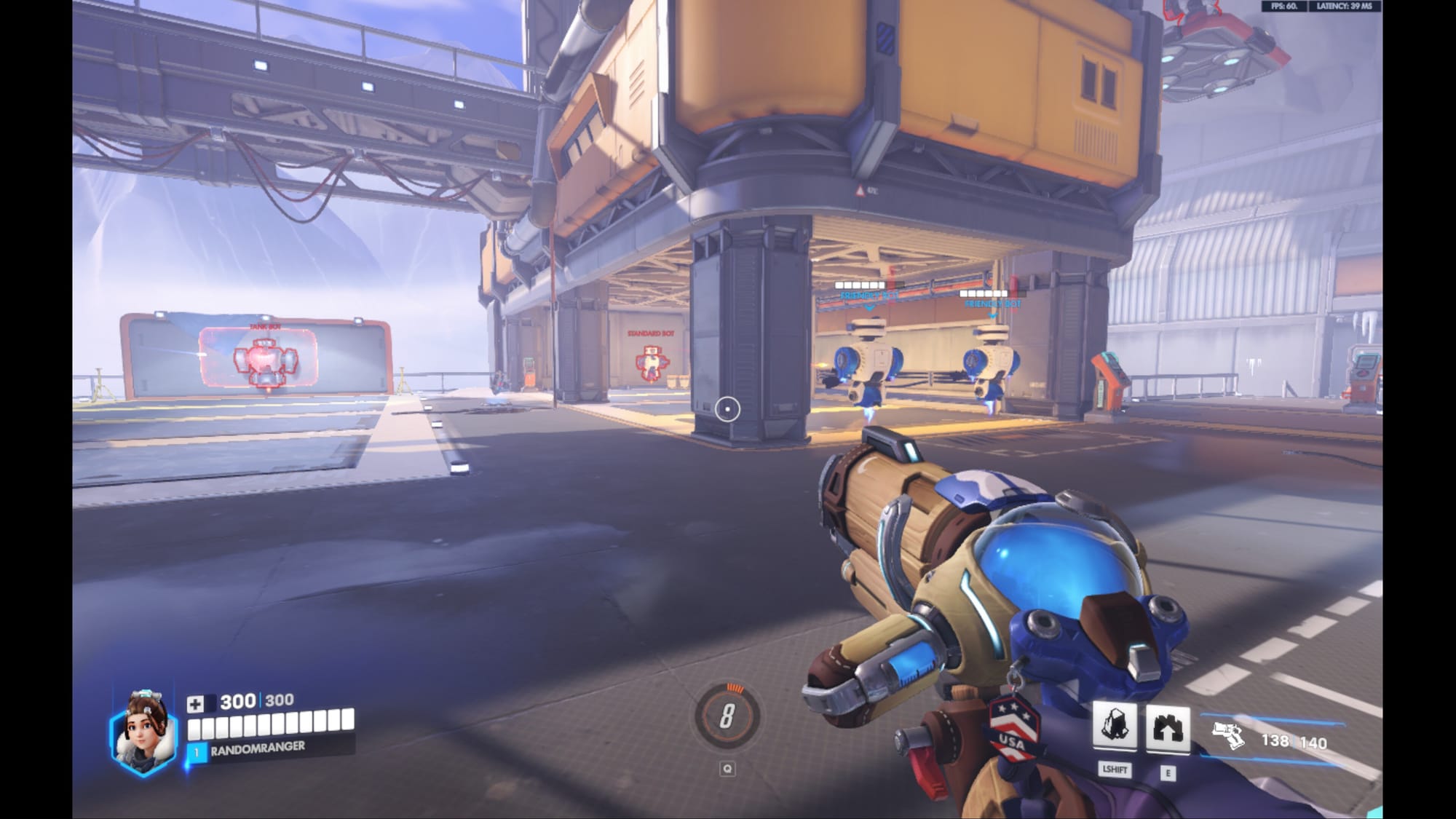
Now, one thing I'll note here is that I have my Deck's maximum game resolution set to 720p, and on my 4K monitor this keeps the aspect ratio the same at the cost of some black bars when in handheld mode. For some reason, I decided to set my maximum resolution back to 800p, regaining some minor real estate in handheld mode at the cost of vertical black bars when docked on my 16:9 monitor. Immediately, my frame rate issues reappeared. What the heck, I had just fixed this! I messed with some different scaling options, and as it turns out when I used the "stretched" scaling mode, which stretches the game to fit the monitor's aspect ratio (hiding the black bars), the frame rate limitation went away. That is to say, my guess is that when black bars are visible on the deck, a compositor is re-engaged... thus so is the frame rate limitation. To fix this, I simply re-enabled a max game resolution of 720p.
I also tested using the mangohud overlay and a mismatched aspect ratio (to produce black bars) at the same time to see if the performance impacts would stack and found that they do, though the impact of the composition element isn't as drastic as the first. Enabling just one of either black bars or mangohud would drop Overwatch's frame rate by as much as 45fps, but also enabling the other would only drop it another 10fps.
In theory, these composition performance hits also affect the Steam Deck in handheld mode. In practice however, it doesn't appear that the Deck's bandwidth is bothered by the extra composition steps in handheld mode when the resolution is only 720p or 800p. It's only once I increased my resolution to 4k on an external monitor that I really began to notice the impact. I also imagine that at lower resolutions, the bottleneck isn't this bandwidth at all but rather the CPU/GPU, so it should only be an issue after a certain point, e.g. when the resolution is high.
Troubleshooting TLDR
Here's the short version:
- Don't try outputting 4k120 from the deck unless you're certain it's supported and are willing to do some troubleshooting anyways.
- Disable the Deck's fps overlay. This can introduce a new bottleneck via the compositor.
- Eliminate black bars: match your game resolution to your monitor's aspect ratio. Black bars can hurt fps just like the fps overlay. Alternatively, you can used "stretched" scaling, but this is ugly.
If you are not experiencing frame rate drops when docked... great! I believe part of the issue I'm encountering is due to the bandwidth requirements of a 4k image, and thus lower resolution displays may not be as affected. In fact, one of my first workarounds was to drop my monitor's resolution to 720p. In the early stages of this investigation I was actually able to measure a linear relationship between the bottleneck and the resolution, however that seems to have gone away at some point. I'm guessing some optimizations have been made in the background.
Valve, if you're reading this
First, I love my Deck. Second, gamescope doesn't seem to transmit the monitor configuration changes to game's when the physical display device changes. As a result, they're unable to respond to changes in resolution or aspect ratio. This wouldn't directly address the performance issues I cited, but it could help make the experience smoother for certain games. In theory, game's should be able to automatically adjust to changing resolutions as the display changes, especially in borderless fullscreen mode, however they don't have access to this information.
Please add a feature to gamescope that allows games to observe the change in physical display (and a way to disable that per-game).
![[Archive] Halo Cosplay Tutorials](/content/images/size/w600/2026/03/DSC_0013B-4.jpg)